The Apple logo that never goes away is the phone telling you it starts booting and fails partway. The cause ranges from a hiccuped update (fixable at home, data intact) to failing hardware (fixable on a bench). Work through these in order — the order matters, because it’s arranged from safest for your data to most drastic.
Fix 1: Force restart (safe, always try first)
- iPhone 8 or newer: press and release Volume Up, press and release Volume Down, then hold the Side button — keep holding through the logo, up to 30 seconds — until it either boots or you give up.
- iPhone 7: hold Volume Down + Side together.
A surprising number of “stuck” phones were mid-crash and boot normally after this. No data risk.
Fix 2: Charge, then repeat
A phone that died during an update can lack the charge to finish it. Plug into a wall charger for 30 minutes, then force restart again. No data risk.
Fix 3: Recovery mode — choose Update, not Restore
If the phone still can’t get past the logo, the system files likely need repair:
- Connect the iPhone to a computer (Finder on Mac, iTunes/Apple Devices app on Windows).
- Perform the force-restart sequence but keep holding the Side button past the logo until the recovery screen (cable/computer image) appears.
- The computer will offer Update or Restore. Choose Update. It re-installs iOS while preserving your data.
Update fixes most update-failure cases. If the process errors out or the phone loops back, resist the Restore button — see below first.
Fix 4 (last resort): Restore — but only with eyes open
Restore erases the phone. If you have a current backup, it’s an acceptable final software step. If you don’t — stop. A phone that fails recovery-mode Update often has a hardware cause, and restoring won’t fix hardware; it just deletes your photos on the way to the same dead end. Get a professional opinion before erasing anything.
When it’s hardware
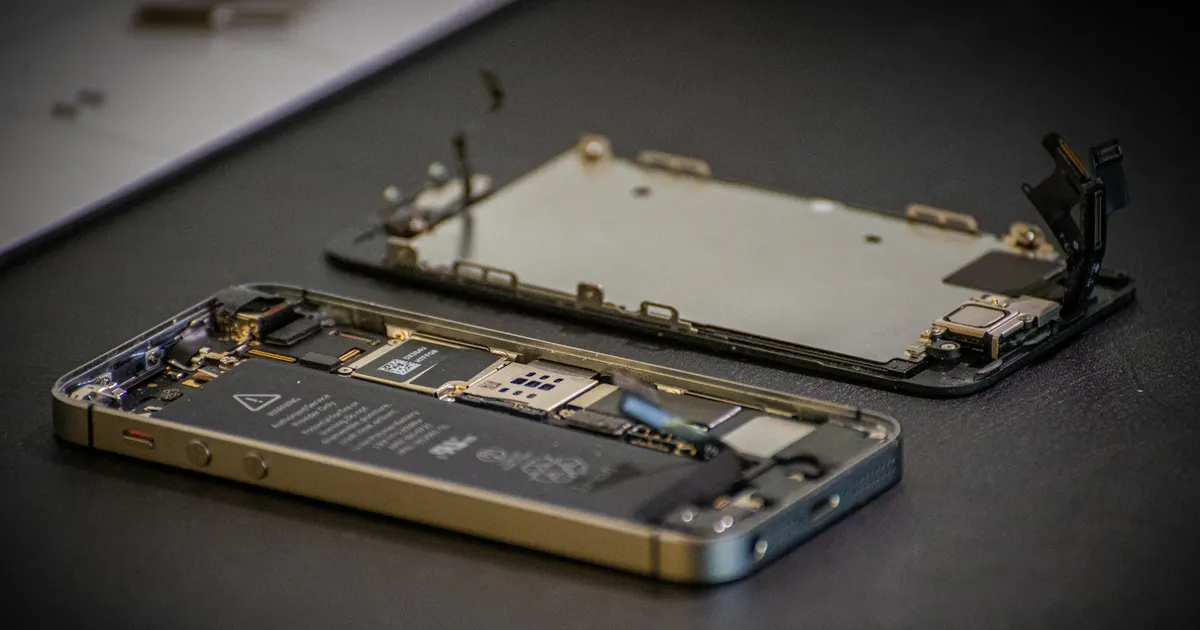
Logos and boot loops with a hardware cause typically trace to:
- NAND storage faults — the phone can’t read its own system files reliably.
- Board damage — from drops, or liquid exposure weeks earlier (“it fell in water last month but was fine…”).
- Failed components after years of service.
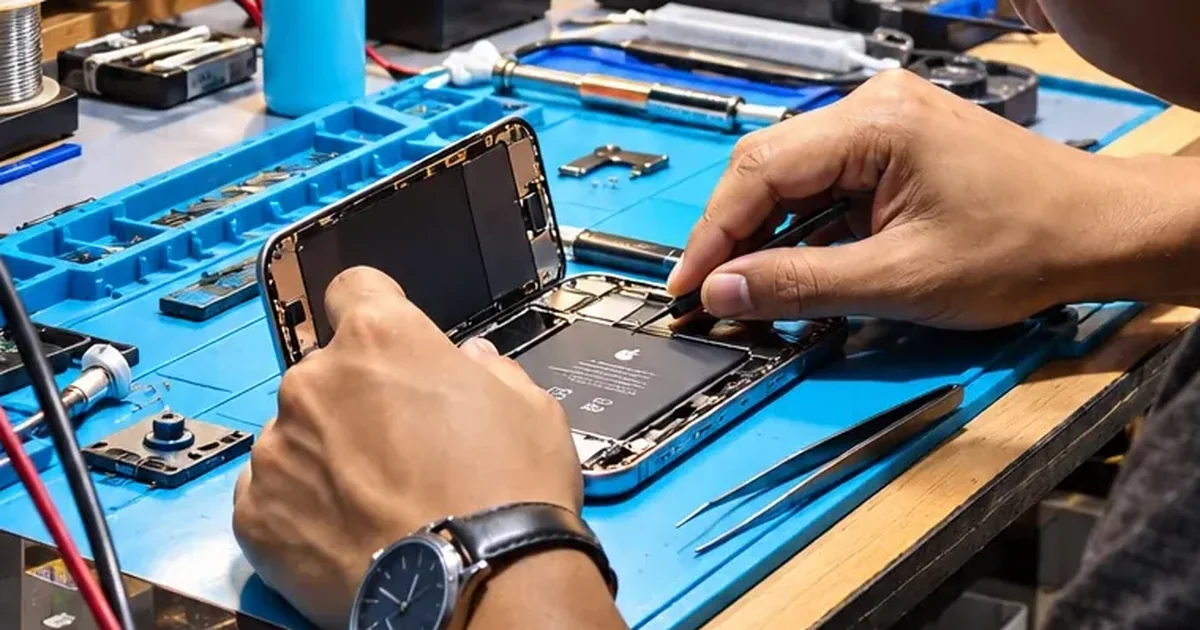
These are board-level repairs — microscope work, and very much survivable, including for your data: reviving the board even once is enough to take a full backup.
Stuck right now with irreplaceable photos inside? Skip Restore. Bring it to iFix Guwahati in Bhangagarh for a proper diagnosis — +91 91271 99144.