Your iPhone says storage is full. You delete a hundred photos. Nothing changes.
This is the single most common everyday iPhone complaint we hear, and almost nobody attacks it in the right order. Here is the order — biggest wins first.
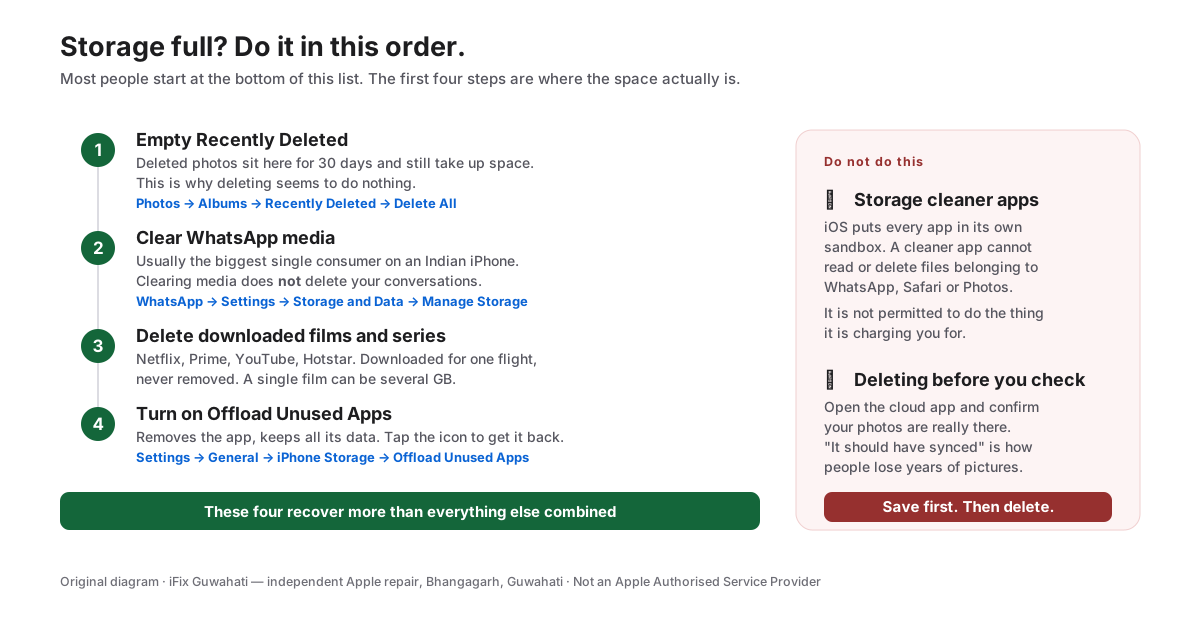
Our own diagram — screenshot this and work down it.
Start by looking at where it actually went
Settings → General → iPhone Storage.
Wait a few seconds for the bar chart to fill in, then look at the list underneath, sorted largest first. Before deleting anything, this tells you whether you are fighting photos, WhatsApp, downloaded video or something else entirely.
Almost everyone guesses wrong about their own phone. Look first.
1. Empty Recently Deleted — the reason deleting seems useless
Photos → Albums → scroll to the bottom → Recently Deleted → Select → Delete All.
Deleted photos and videos sit in that album for 30 days before iOS actually removes them. Until then they take up exactly as much space as before.
This is why people delete hundreds of photos and watch their free space refuse to move. If you have been clearing photos for weeks without emptying this album, you may recover several gigabytes in one tap.
The same trap exists in Files (Recently Deleted), Notes (Recently Deleted) and Messages (Recently Deleted). Check all four.
2. WhatsApp
In India this is usually the second-biggest consumer on the phone, and often the first. Years of forwarded videos, wedding photos and good-morning images that nobody chose to save and nobody has ever opened again.
WhatsApp → Settings → Storage and Data → Manage Storage.
It sorts by which chats are hoarding the most, and lets you clear media from a chat without deleting the conversation.
This deserves its own walkthrough: WhatsApp is probably your biggest storage problem.
3. Downloaded films and series
The one people genuinely forget.
Netflix, Prime Video, YouTube, Hotstar, Spotify and Apple Music all download for offline viewing, and a single downloaded film is easily 1–3GB. Downloaded for a flight eighteen months ago, never deleted.
Check inside each app’s own downloads section. Settings → General → iPhone Storage will show you which of them is worth opening.
4. Offload unused apps
Settings → General → iPhone Storage → Offload Unused Apps → Enable.
Offloading removes the app itself but keeps all its documents and data. The icon stays on your home screen with a small cloud symbol, and tapping it reinstalls with everything intact.
This is the safest cleanup on the list. There is very little reason not to turn it on.
You can also offload individual apps: tap any app in that list, then Offload App. Use this for anything large you use twice a year.
Those four steps usually recover 20 to 50GB. Everything below is worth doing, but this is where the space actually is.
5. Photos — optimise rather than delete
Settings → your name → iCloud → Photos → Optimise iPhone Storage.
Full-resolution originals live in the cloud, and your phone keeps smaller versions, downloading the original when you actually open one. Your library looks unchanged; it just stops occupying the whole phone.
This needs enough iCloud space for your library. If that is the sticking point, read how to back up your photos and videos without paying ₹1.5 lakh for storage — a great many mobile plans in India already include cloud storage that people never claim.
Duplicates: Photos → Albums → Duplicates. iOS finds them itself now and can merge them in a batch. No third-party app required.
6. Messages
Two fixes, both quick:
Stop keeping everything forever. Settings → Apps → Messages → Keep Messages → 1 Year instead of Forever. iOS will offer to delete older conversations.
Find the heavy attachments. Settings → General → iPhone Storage → Messages. It breaks down photos, videos, GIFs and stickers, and lets you review the largest.
7. Safari
Settings → Apps → Safari → Clear History and Website Data.
Modest on its own — usually a few hundred megabytes — but it is one of the things that quietly inflates System Data.
What is “System Data”, and why is it huge?
The category that confuses everyone.
System Data is the catch-all: caches, logs, temporary files, Siri voices, downloaded fonts, and anything iOS cannot file under a normal heading. It grows and shrinks on its own, and several gigabytes is completely normal.
It only warrants attention when it swells to tens of gigabytes. In that order:
- Restart the phone. Genuinely effective — it clears temporary files that a stuck process was holding.
- Clear Safari website data (above).
- Clear caches in the heavy apps — WhatsApp, YouTube, Instagram. Most cache aggressively.
- Update iOS. Some cache bugs are fixed in updates.
- Last resort: back up, erase the phone, restore from that backup. This genuinely resets System Data, but it takes time — do not start here.
There is no setting that empties System Data directly, and any app claiming otherwise is not telling you the truth.
Do not install a storage cleaner app
This matters, because these apps advertise heavily and charge subscriptions.
iOS sandboxes every app. An app cannot see, read or delete files belonging to another app. That is a core security design, not an oversight — and it means a cleaner app cannot clear your WhatsApp media, your Safari cache, your app caches or your System Data. It is not permitted to.
The only thing such an app can genuinely do is find duplicates in your own photo library, and the Photos app now does that natively.
If an app promises to clean junk files on an iPhone, it is describing something iOS does not allow.
What not to delete
Do not delete an app to “free space” if you need its data. Offload instead — same space saved, nothing lost.
Do not delete photos you have not confirmed are backed up. Open the cloud app and actually look. “It should have synced” is how people lose years of pictures. We see the consequences of this on the bench constantly — a dead phone, and the only copy of the photos was inside it.
Do not factory reset as a cleanup step. It is the last resort on the System Data list, not a first move.
When storage is not really the problem
Two things get blamed on storage that are not storage:
A phone that feels slow. A very full phone can slow down, but far more often the cause is a worn battery — iOS throttles performance to prevent unexpected shutdowns when a battery has degraded. Check Settings → Battery → Battery Health. If capacity is below 80%, that is your slowdown. See battery draining fast — software or a worn battery?
A phone that will not update. iOS updates need free working space, so “storage full” can block an update. But if the update is not offered at all, your model may no longer be supported — different problem, explained here.
Still stuck, or worried about getting data off a phone that is misbehaving? Talk to us before you try anything drastic like a reset — once data is gone from a device, it is gone.
Talk to us → · iPhone repair in Guwahati → · +91 91271 99144